Turn screen recordings into videos people can follow.
Record your screen, then zoom in, point at the right button and add captions. FluidEditor runs in your browser, and it’s built for tutorials, product demos and explainers.
Every feature included · Nothing to install · Cancel any time
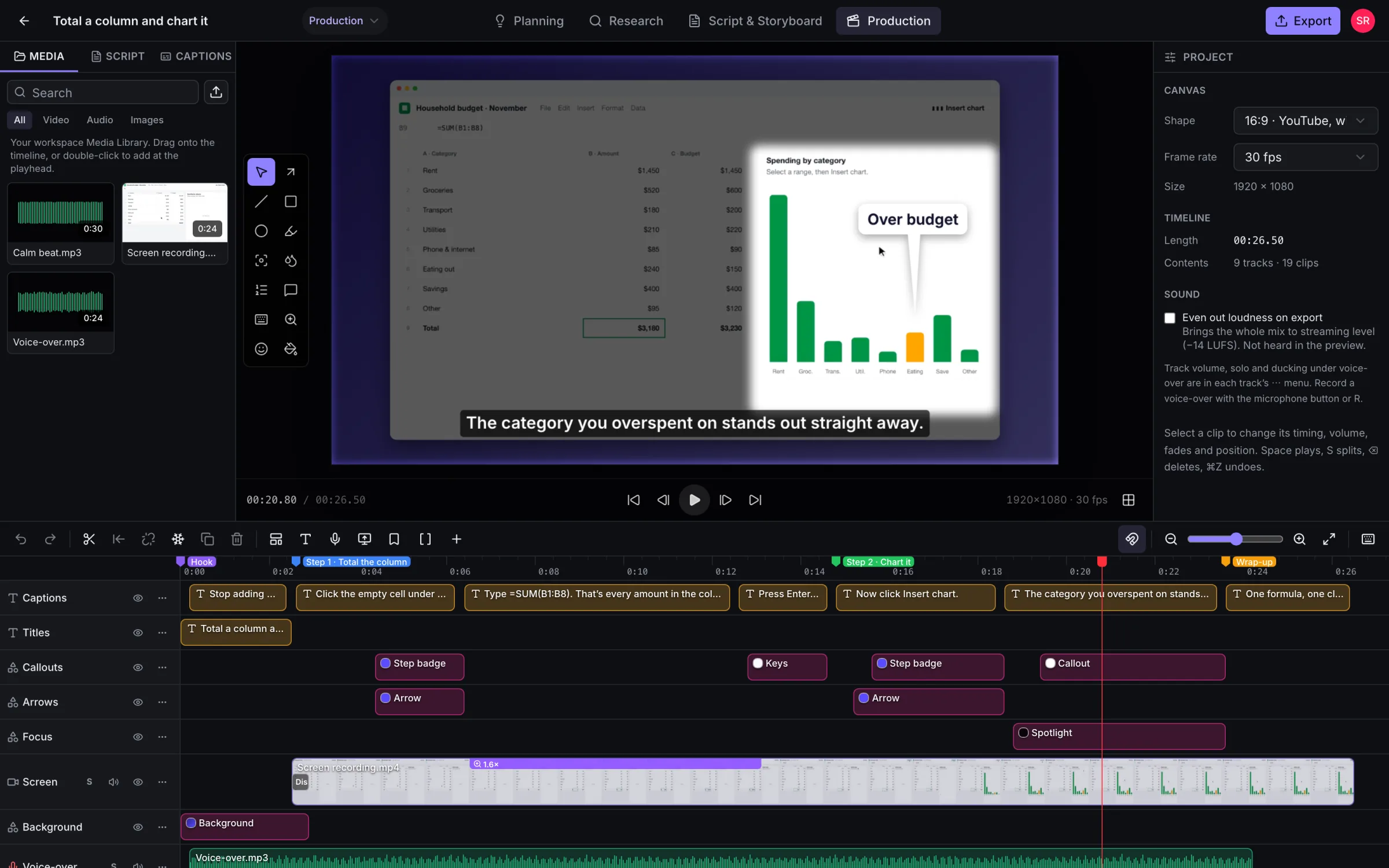
- 1 Your screen recording Recorded here, or uploaded.
- 2 Arrows, callouts and spotlights Drag on the picture to add them.
- 3 Captions Made from your script.
- 4 One timeline Everything has its own clip.
Made for people who show and explain things on video
Same recording. Much easier to follow.
A raw screen recording makes viewers hunt for the important part. Drag the slider to see the same moment after a few minutes in FluidEditor.
- Zoom in on the detailDrag a box on the preview. The zoom eases in and out on its own.
- Point at what mattersArrows, numbered steps, callouts, highlights and spotlights.
- Caption every lineReadable on a phone, and exported as SRT for YouTube.
- Make it look finishedA background, rounded corners and a shadow in one click.
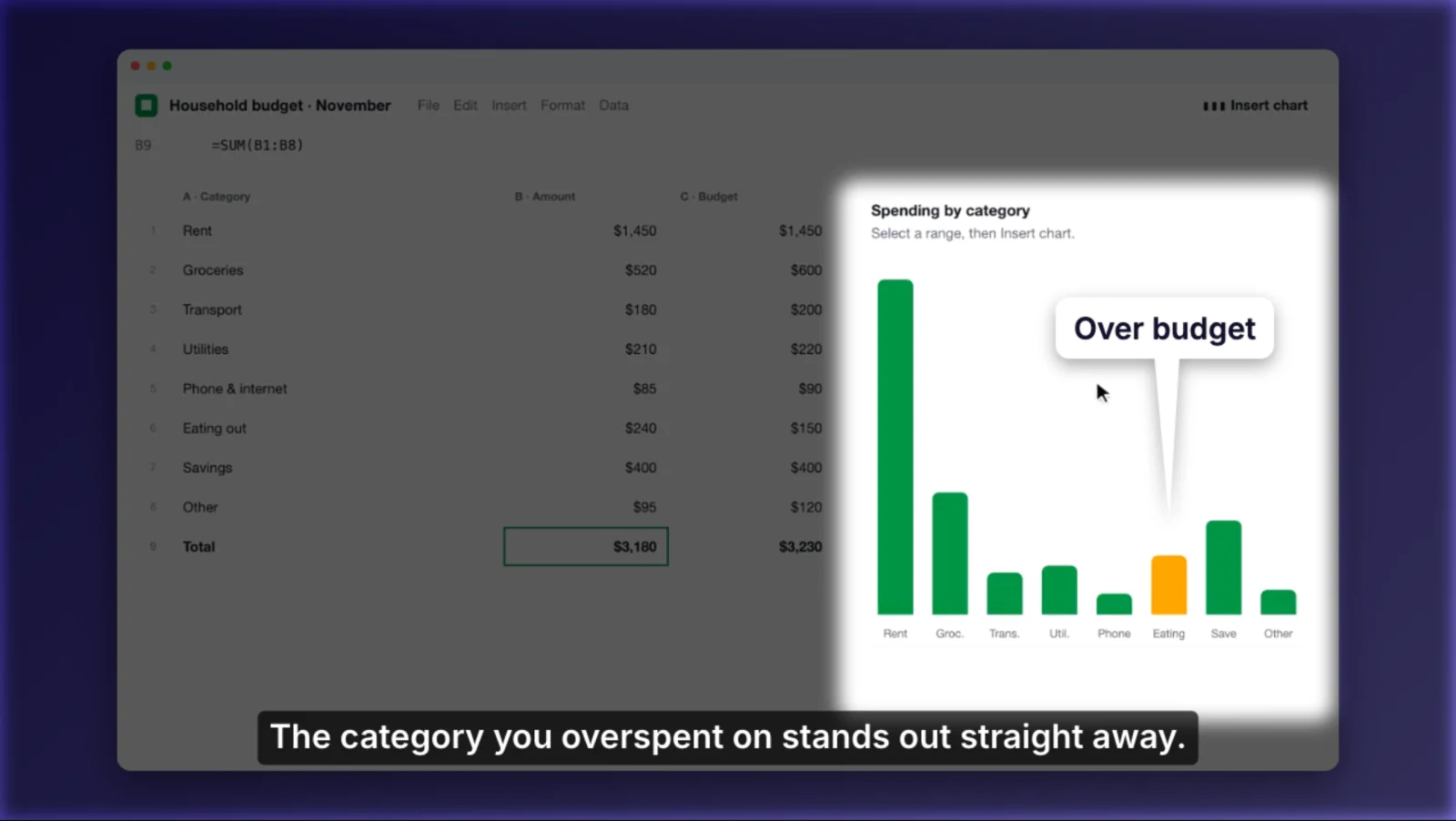
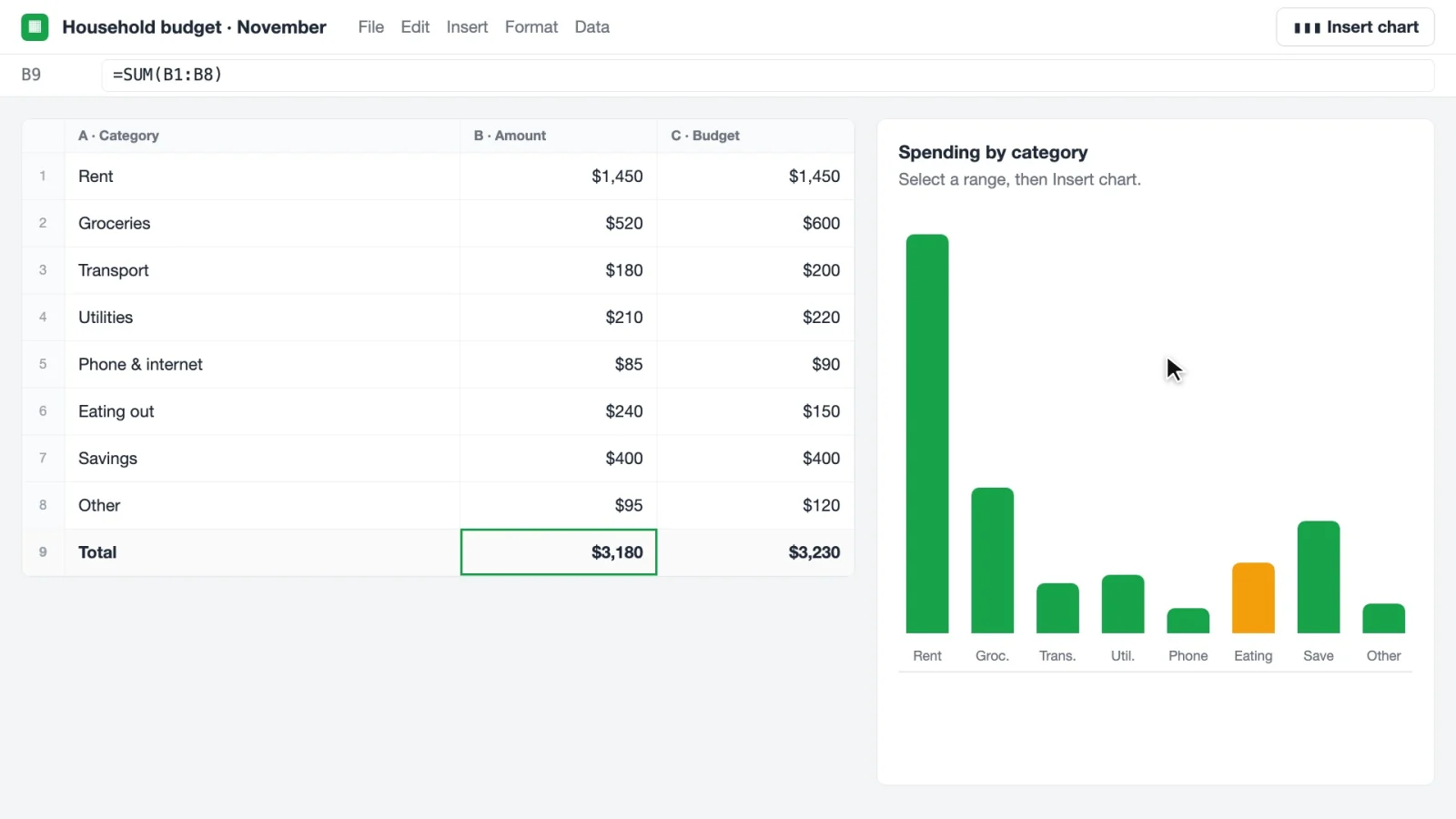 Before
After
An example tutorial made in FluidEditor: “Total a column and chart it”.
From idea to finished video, in one place.
No juggling a script doc, a screen recorder, an editor and a captions tool. These are real screens from FluidEditor.
Step 1 of 4
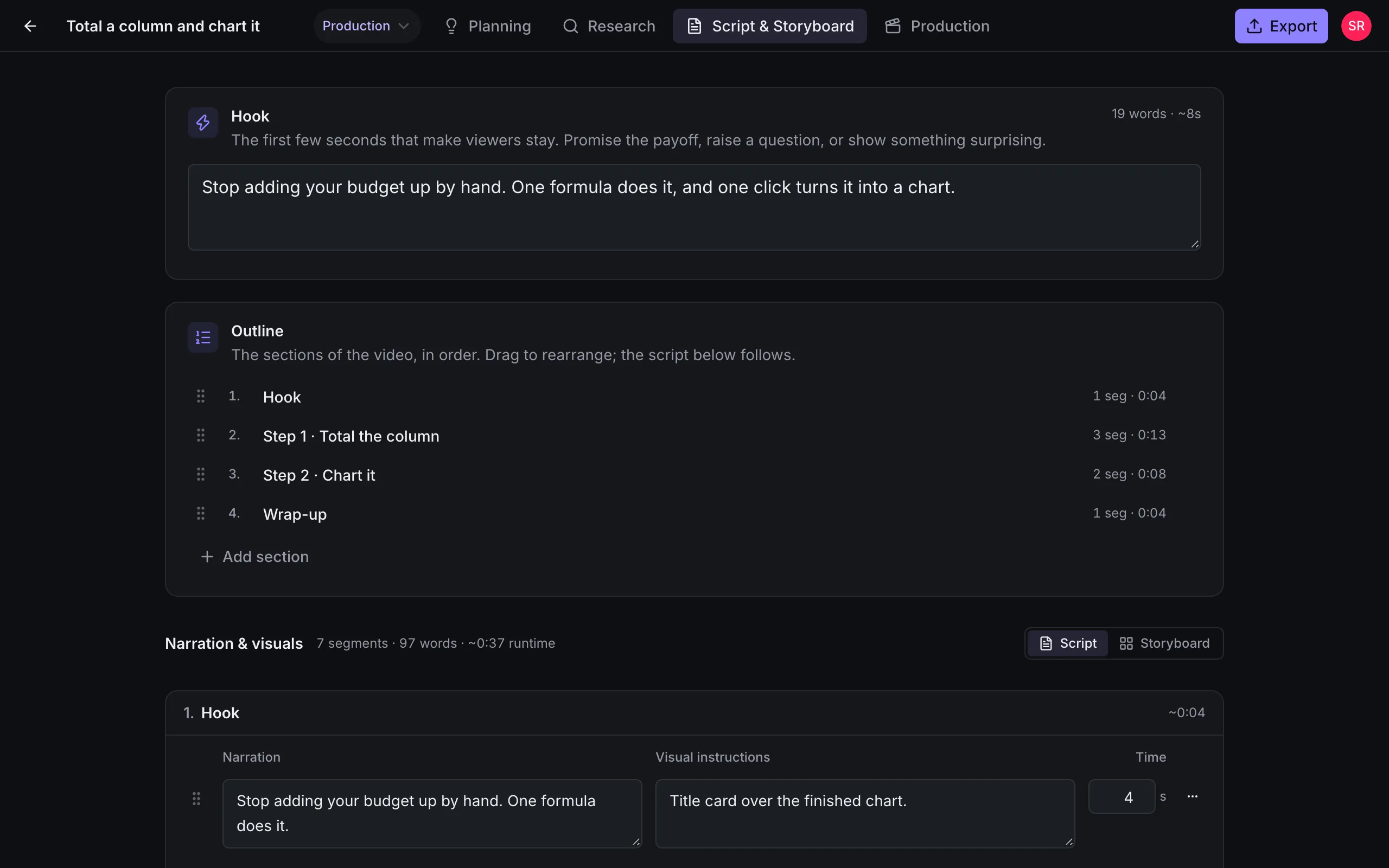
Know what you’ll say before you hit record.
Write the idea, who it’s for and what they should be able to do afterwards. Then script each step: what you’ll say and what’s on screen. FluidEditor estimates the running time as you write. It’s optional, and it makes the recording much quicker.
Step 2 of 4
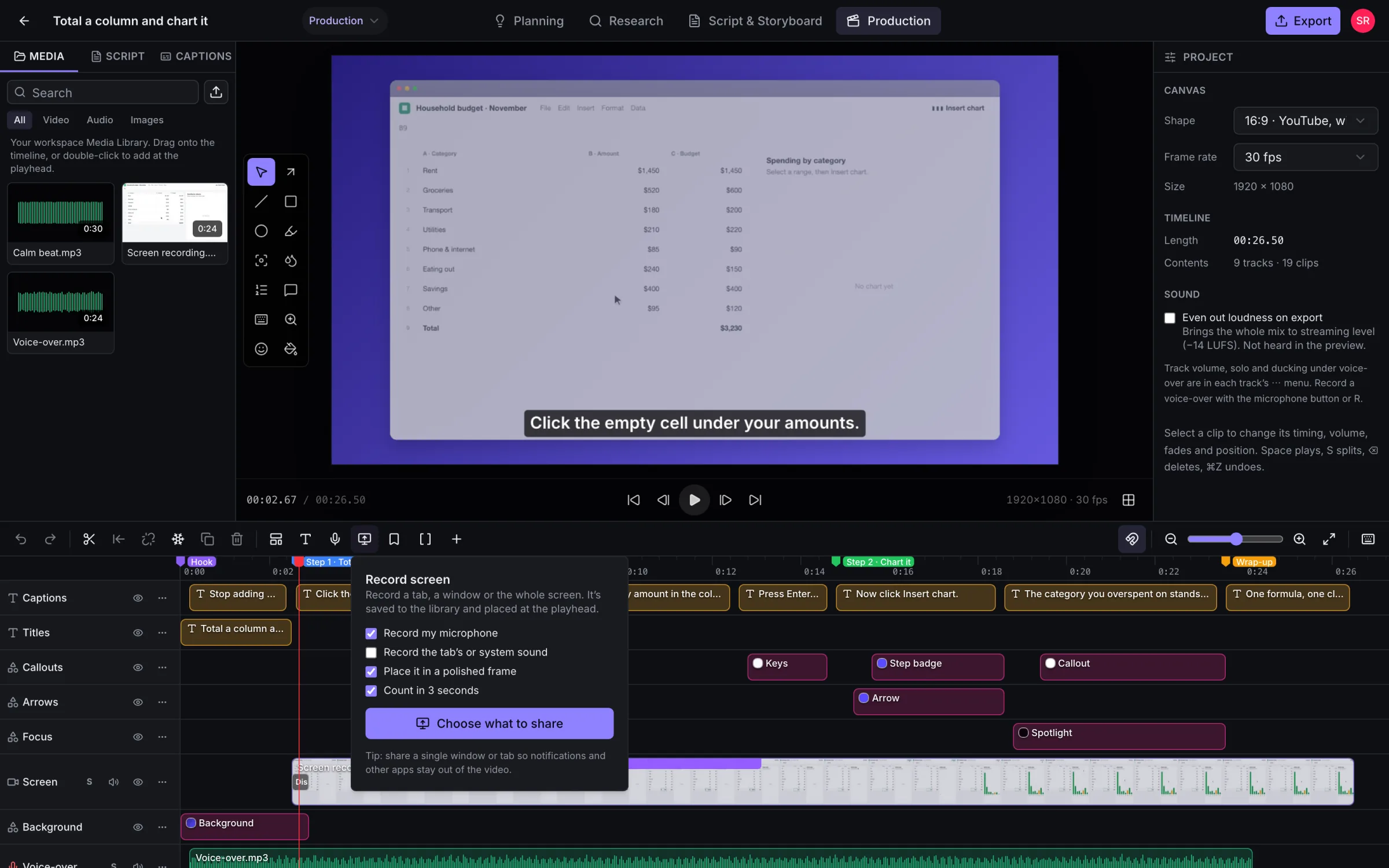
Your screen and voice, straight into the project.
Record a browser tab, a window or your whole screen, with your microphone. Or drop in videos, audio and images you already have. Everything lands in your media library, ready to edit.
Step 3 of 4
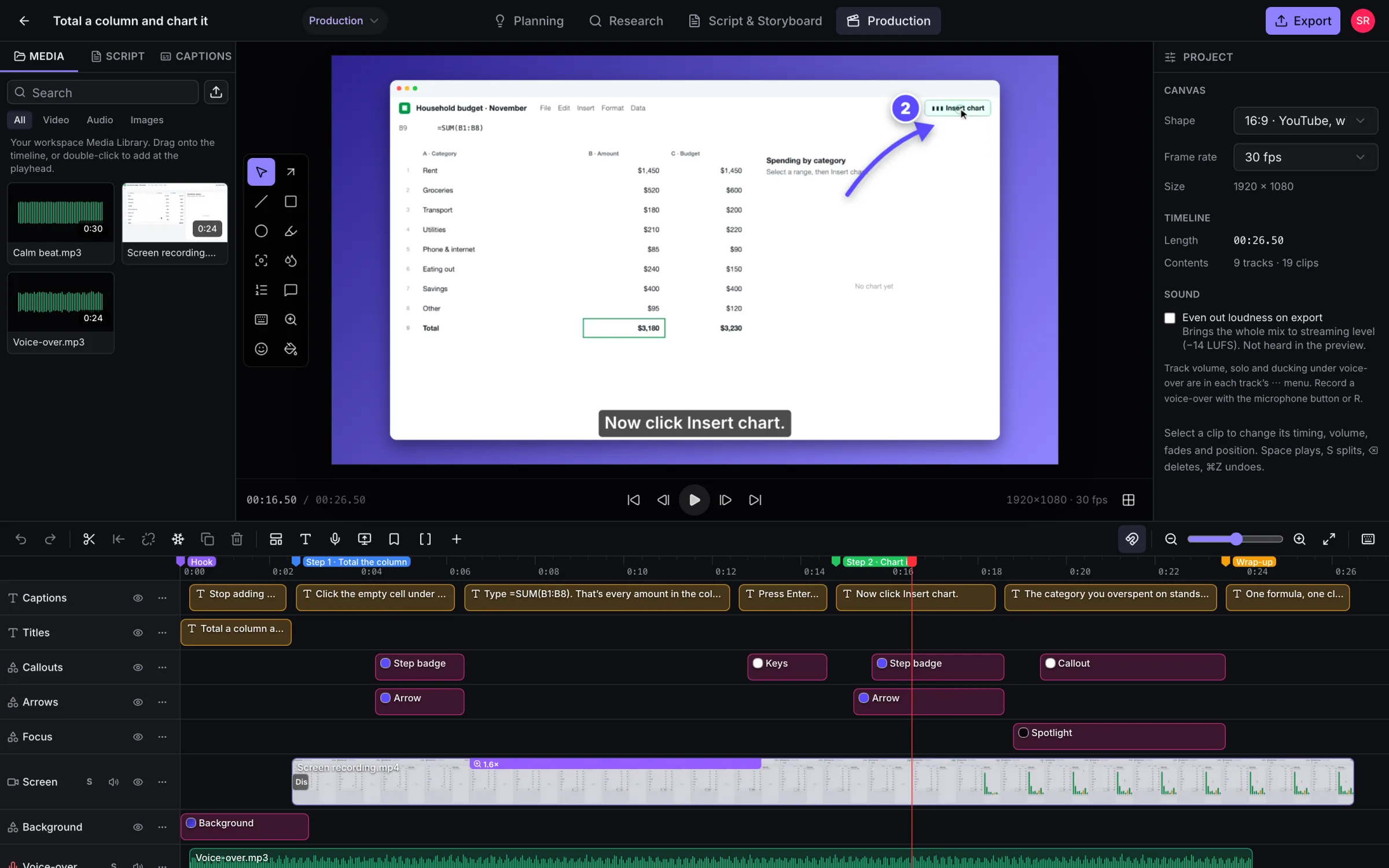
Show exactly where to look.
Trim and arrange clips on the timeline. Drag on the preview to zoom in, draw an arrow, add a numbered step or blur a password. Turn your script into captions and record a voice-over against the picture.
Step 4 of 4
A finished video for wherever it’s going.
Choose YouTube 1080p, Shorts and Reels, 4K or audio only. The video renders on our servers, so you can close the tab and come back to a finished file.
Try it free for 14 days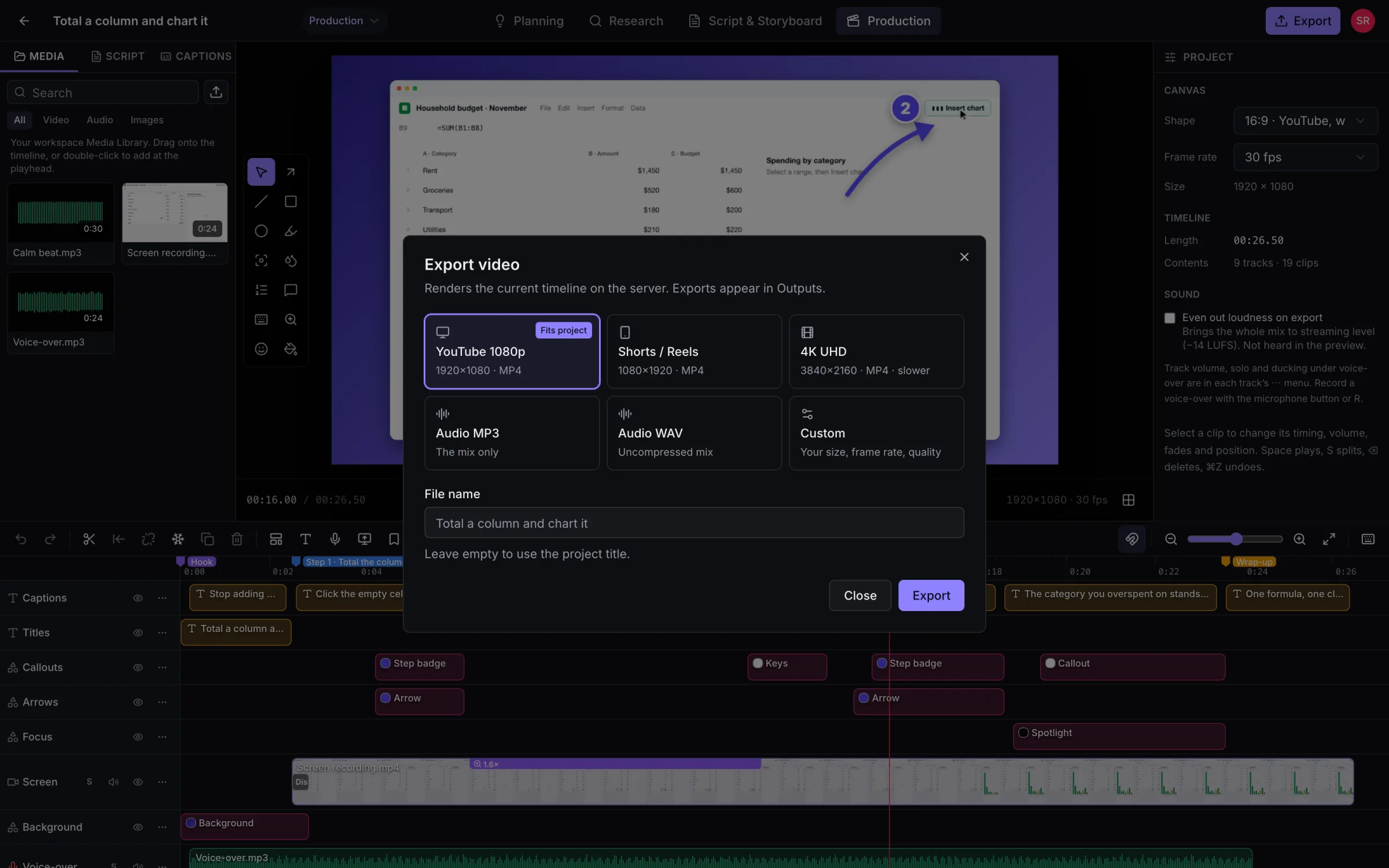
Show viewers exactly where to look.
Pick a tool, drag on the preview, and it appears at the right moment in your video. Change when it shows up and how it animates on the timeline. Hover a tile to see it play.
Arrows & lines
Straight or curved, and they draw themselves on.
Shapes
Boxes, circles and outlines with rounded corners and shadows.
Highlight
A marker-pen box over the words that matter.
Spotlight
Dim everything except the part you’re talking about.
Blur & pixelate
Hide emails, keys and names. Follows moving content.
Step badges
Numbered circles that number themselves.
Callouts
A label with a pointer, for “this is the bit”.
Keys
Shortcut chips like ⌘ ⇧ K, typed as text.
Make any recording look professionally finished.
Put your recording on a background with space around it, rounded corners, a shadow and an optional browser window. You can change it any time after recording. Try it here:
Background
Frame
Zoom & pan
Drag a box on the preview.
Screenshots
Framed, with a pop-in.
Scenes
Title, steps, outro.
Write it once. It becomes your captions.
One click puts your script on the timeline: each section becomes a marker and each line becomes text, timed by how long it takes to say. Read along as you record your voice-over, then use the same lines as captions.
-
Captions
Import or export SRT and WebVTT. Lines wrap at 42 characters, the broadcast guideline.
-
Voice-over
Record against the picture. Music dips under your voice on its own.
-
Text presets
Title, lower third, caption, quote and more, with in and out animations.
-
Clean sound
Track volume, solo and mute, and loudness set for streaming on export.
One video, ready for everywhere you post.
Pick a format and FluidEditor renders it on our servers. You can close the tab or start your next video while it works.
Or set a custom size and quality. H.264 MP4, AAC audio, loudness normalised for streaming.
Working with others? Keep every video in one workspace.
On the Team plan, your projects and media live in a shared workspace instead of on someone’s laptop. Invite teammates by email and choose who can edit and who can only watch.
FluidEditor for teamsEvery feature on every plan.
Plans differ only in how many people and how much storage you get. Try everything free for 14 days, then pick a plan if you love it.
What is FluidEditor?
Do I need to install anything?
I’ve never edited a video. Is it hard?
Is it only for software tutorials?
Can I record my screen with it?
Does it zoom in automatically where I click?
What happens when the free trial ends?
Who makes FluidEditor?
Make your next tutorial clearer, and faster.
Record your screen, point at what matters and export a finished video. Try every feature free for 14 days.
Questions first?
Every feature included · Runs in your browser · Cancel any time